
IPTV OTT Encoding & Streaming
Codec Settings
Advanced H.264, HEVC, VPX, and AV1 Encodings
For H.264, HEVC, VPX, and AV1 video encodings, you can adjust the Profile, Level, and Preset settings to tune video quality.

IPVTL supports the following H.264 and HEVC encoding profiles:
| H.264/AVC Profiles |
baseline | main | high | high 10bit | high 4:2:2 | high 4:4:4 |
|---|---|---|---|---|---|---|
| x264 | ✔ | ✔ | ✔ | ✔ | ✔ | ✔ |
| NVIDIA NVENC | ✔ | ✔ | ✔ | ✔ | ||
| Intel QuickSync | ✔ | ✔ | ✔ | |||
| AMD AMF | ✔ | ✔ | ✔ | |||
| MainConcept | ✔ | ✔ | ✔ | ✔ | ✔ | ✔ |
| NETINT | ✔ | ✔ | ✔ | ✔ |
| H.265/HEVC Profiles |
main | main 10bit | main 4:4:4 | main 4:2:2 10bit | main 4:4:4 10bit | main 12bit | main 4:2:2 12bit | main 4:4:4 12bit |
|---|---|---|---|---|---|---|---|---|
| x265 | ✔ | ✔ | ✔ | ✔ | ✔ | ✔ | ✔ | ✔ |
| NVIDIA NVENC | ✔ | ✔ | ||||||
| Intel QuickSync | ✔ | ✔ | ||||||
| AMD AMF | ✔ | |||||||
| MainConcept | ✔ | ✔ | ✔ | |||||
| NETINT | ✔ | ✔ |
Threads specifies how many threads are used for encoding. This setting allows you to tune encoding performance. Leave it set to "auto" if you are unsure.
Encoding Preset is the primary factor that affects video quality. Higher preset values result in higher video quality. However, there is a tradeoff between quality and speed. The default value works for most cases. If IPVTL is running on slower hardware, try a lower preset to achieve smoother output. Generally, the value should not exceed 6. See details below.
| Encoding Presets |
0 | 1 | 2 | 3 | 4 | 5 | 6 | 7 | 8 |
|---|---|---|---|---|---|---|---|---|---|
| x264/x265 | ultrafast | superfast | veryfast | faster | fast | medium | slow | slower | veryslow |
| NVIDIA NVENC | fast | low latency hp | hp | default | bd | medium | hq | low latency hq | low latency default |
| Intel QuickSync | best speed | faster | fast | balanced | slow | slower | best quality | ||
| AMD AMF | speed | balanced | quality |
Key Frame Interval
Key Frame Interval defines time in seconds (defautls to 5) between key frames in video stream for decoders. For HLS output format, it also affects the .ts segments duration. Users just need to set TS Segment Length in Advanced HLS Config and key frame interval will be changed accordingly. If you have no idea about it, just leave it as default.
GPU Hardware Transcoding
NVIDIA / Intel GPU decoding options are available in advanced video settings -> Misc. Enable GPU decoding with GPU encoding makes transcoding more efficient, as it saves frame copying between system memory and video card memory. But make sure of the source video encoding first, because only H.264 / HEVC decoding is supported by GPUs.
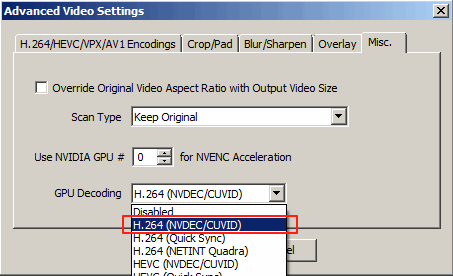
If you need video interlacing / deinterlacing, Scan Type option can be applied here.